
PowerShell Logging
In cybersecurity, visibility is often overlooked in considerations for improving an environment's security posture. It's a common thread that organisations lack sufficient visibility of activity on workstations and servers, leaving themselves underequipped to investigate breaches and see the early signs of a potential breach. It must be understood that the importance of being able to see potential breaches before they happen, or real breaches as they happen, is immense. It is enticing to focus purely on technical controls where the implementation starts and ends with the enabling of a group policy object, however security should be treated as a critical organ of any IT environment and that requires human intervention to monitor logs and respond to them.
An easy implementation that can provide a lot of critical visibility is monitoring and collecting PowerShell logs, which is what we will cover here. PowerShell is a powerful shell program (pun intended) and is rightfully treated as a dangerous attack vector. It's a useful tool that every Windows sysadmin has inevitably leant on, and by extension, it's utilisation in malicious attacks on organisations is due to its capability to control low-level system functions. The ACSC provides a lot of relevant information on securing PowerShell in your environment which you can read here. For this blog though we will park technical implementations and discussion on restricting PowerShell and focus on the smaller (yet just as critical) task of improving our visibility over PowerShell through centralised logging.
You can approach centralised logging of PowerShell logs in several ways. Firstly, access to a SIEM product and configuring it to ingest PowerShell logs is the ideal implementation of ISM-1623 by having a centralised, protected repository for storage. Without a SIEM we can still centrally store logs, although may require more discipline on part of the organisation to maintain the repository. We will cover an implementation that supports both in this blog.
Some prerequisites:
1. You will need to have PowerShell 5 installed and have earlier versions of PowerShell disabled or uninstalled; Module Logging can be sidestepped by exploiting earlier versions of PowerShell and as such is a recommendation from the ACSC to have older versions removed.
2. If you do not have a SIEM, you will require a Windows Server instance joined to your domain that has been configured as a log collection server with WEF (Windows Event Forwarding). If you require instructions on how to do this, this document from the ACSC has instructions.
Implementation of logging for PowerShell can be done via Group Policy quite easily. Firstly, we'll enable PowerShell Module Logging, PowerShell Script Block Logging, and PowerShell Transcription. Create a GPO and enable the following policies:
| Policy Path | Setting | Status | Details |
|---|---|---|---|
| Computer Configuration / Administrative Templates / Windows Components / Windows PowerShell / Turn on Module Logging | Turn on Module Logging | Enabled |
Module Names: Microsoft.PowerShell.* Microsoft.WSMan.Management |
| Computer Configuration / Administrative Templates / Windows Components / Windows PowerShell / Turn on PowerShell Script Block Logging | Turn on PowerShell Script Block Logging | Enabled | Log script block invocation start / stop events: Enabled |
| Computer Configuration / Administrative Templates / Windows Components / Windows PowerShell / Turn on PowerShell Transcription | Turn on PowerShell Transcription | Enabled | Transcript output directory: C:\Temp |
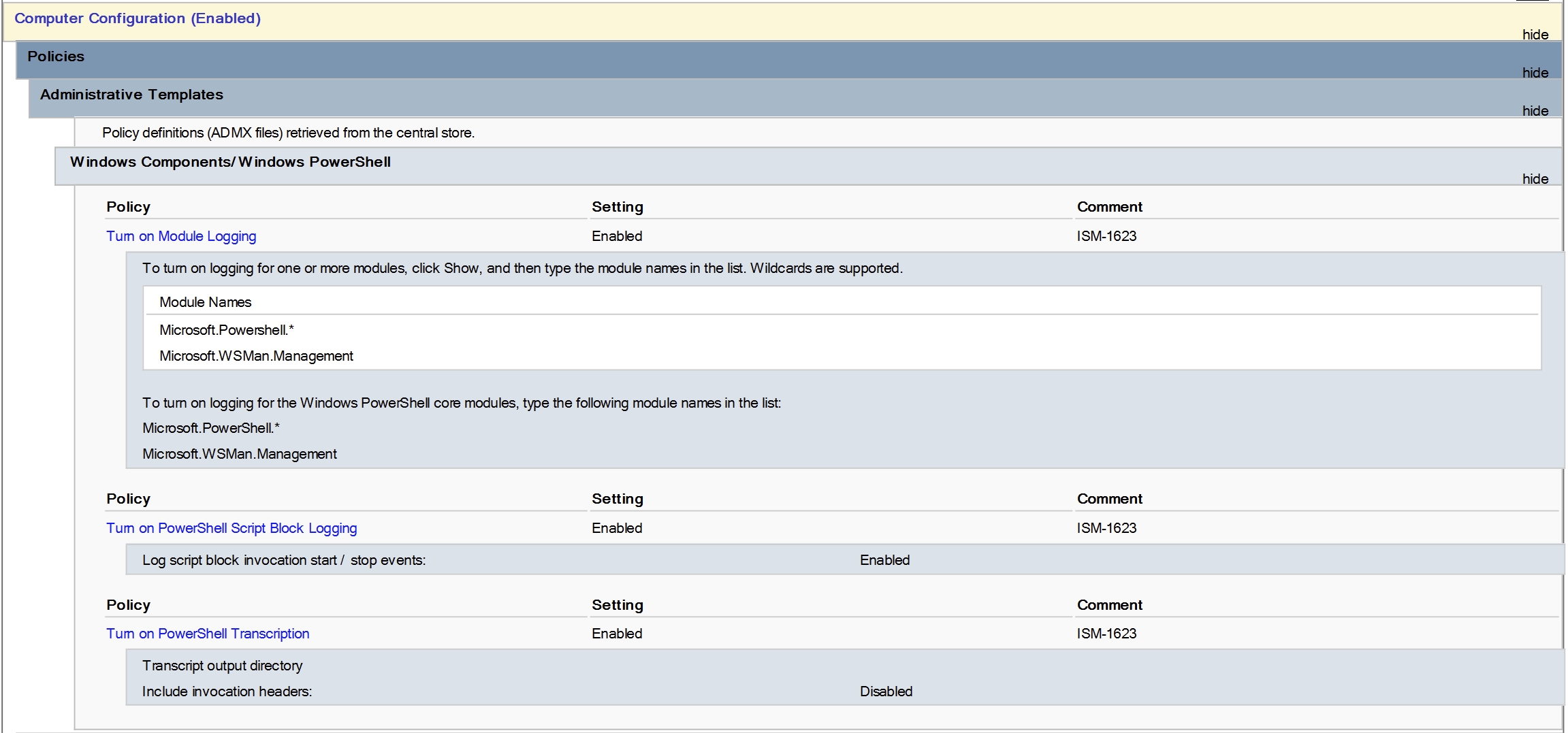
We want to keep the output directory for PowerShell Transcripts to a temporary folder just for the purposes of testing for now.
Apply your GPO to your test client machine either by 'gpupdate /force' in an elevated PowerShell window or restarting the machine. Once applied, test opening PowerShell and running some commands to confirm a text file is created in C:\Temp with a transcript of your commands.
Confirm as well in Event Viewer that there are logged events under Applications and Services Logs > Windows PowerShell.
Once confirmed that transcripts and logs are being recorded, we can move onto configuring the machine as a client for WEF so it can begin forwarding events. This is only necessary if you are not utilising a SIEM to collect logs and are instead sending your logs to a centralised WEF collector.
Create a new GPO with the following policies.
| Policy Path | Setting | Status | Details |
|---|---|---|---|
| Computer Configuration \ Policies \ Administrative Templates \ Windows Components \ Windows Remote Management (WinRM) \ WinRM Client | Disallow Digest authentication | Enabled | - |
| Computer Configuration \ Policies \ Administrative Templates \ Windows Components \ Event Forwarding | Configure target Subscription Manager | Enabled |
SubscriptionManagers: <server=logserver.yourdomain:5985> |
| Computer Configuration \ Policies \ Windows Settings \ Security Settings \ Restricted Groups | Add Group ‘Event Log Readers’ | - | Members: NETWORK SERVICE |
SERVICE.
Make sure to change the server targeted in the Subscription Manager policy to target your WEF server and that the 5985 port (or whichever port of your choosing) is open and accessible. Go ahead and run 'gpupdate /force' and restart your client server to ensure the policy is applied. Once done, using the same methods before to confirm PowerShell logs are being taken, log onto your WEF collector server and go to Event Viewer > Windows Logs > Forwarded Events and make sure it is receiving events from your client server.
Next, for receiving transcripts, we can configure the WEF server to host a network share that can be targeted by our PowerShell Transcription policy. Create a new network share, ensure that permissions are configured to allow the client workstations and servers to write to the folder. Once complete, enter the server as your target into Transcript Output Directory entry of the policy as “\\yourserver\directory\”.
This should be a small, yet strong start towards having more visibility over your environment. Essential 8 provides broad recommendations for improving visibility via the ISM and it is mostly up to your interpretation or the interpretation of your security vendor on whether you are compliant, although in this technical implementation you would require more work yet to become compliant. For example,
"ISM-1228: Cyber security events are analysed in a timely manner to identify cyber security incidents" reaches ML2 and ML3 compliance, however the fulfilment of the control is left up to interpretation. What fulfils a timely manner? What are classified as cyber security events? The Essential 8, and by extension the ISM, remain fairly neutral and expresses little opinion in its controls. This contrasts with more opiniated frameworks like CIS where it is a lot more prescriptive and covers more of the minutiae. While this allows Essential 8 to fit into a lot more organisations, it does mean it require more interpretation to implement controls that fit your environment. You can be compliant with Essential 8 with completely different implementations to another compliant organisation, so it is up to an auditor to weigh the implementation to whether it does or does not meet compliance.